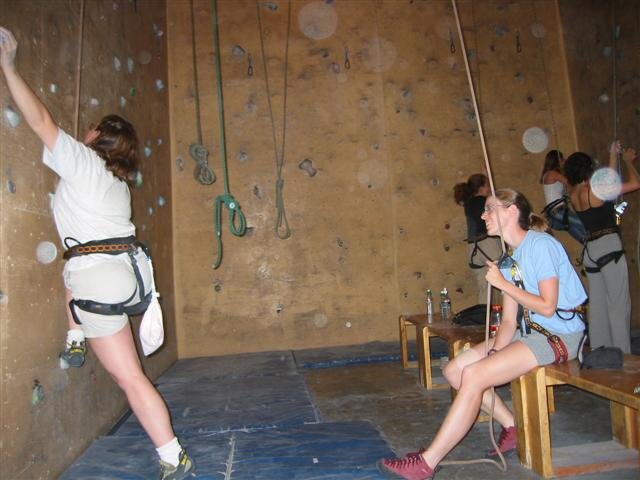
Andrea and I really didn’t get into digital photos until February 2004, and we haven’t scanned many old photos (yet!). As such, I only have two albums processed for 2002 — one from an outing where she went rock climbing and another from a conference later in the year.
July was the rock climbing outing, where Andrea and Amanda went to Vertical Reality on Victoria Island here in Ottawa. If Andrea later said I was making her climb the walls, well, she had experience.
Over the late spring and all through the summer, I was working with a group of students at Carleton University to organize a conference in September at a downtown conference centre. We got some heavy hitters to come out, and produced a fairly solid report on HR challenges for the time. Here’s our organizing committee.
So that’s it for us in the gallery for 2002. A short review of the year. See the full gallery below…
As part of my #50by50 posts, I repatriated all my videos and pictures from SmugMug, threw them into Piwigo, and (mostly) completed a good layout and design for my online photo gallery. I had tried integrating directly into WordPress, but the biggest and best (relatively speaking) gallery called Next Gen Gallery just didn’t play well with some of my other plugins, and I couldn’t get it to work right. I tried various other WP tools, but nothing was jiving for me. Piwigo worked, I found some themes I liked, I tweaked some stuff, called it a day. Then proceeded to put a LOT of time and effort into uploading 12755 photos and videos of various types and sizes.
I made it as good as I could, but it was far from “perfect”, if there is any such thing. For example, Piwigo likes to play with different size images. So it would take the original ~13K photos and make a thumbnail for each one. Plus a medium size. And a large size. Which means ~13K photos suddenly becomes ~52K files on the site. Plus the Piwigo install itself…plugins, core files, themes, etc. Call it another 3K in admin files, and I’m at 55K for the number of files. Which isn’t a problem on the one hand — my account comes with unlimited storage space. Great! Except there’s a small caveat to that unlimited storage space. It only allows 200,000 nodes which are basically file markers. 200K nodes = 200K files. I’m only at 55K, but the wrinkle?
That’s just the gallery. I also have AstroPontiac, ManagementConsultingServices, and oh, yeah, all of POLYWOGG.CA i.e. this site within the 200K too, with separate full installs of WordPress three times (that’s another story, but still). Which at one point put me close to 150K nodes. As I continue to add and upload stuff, that “margin” starts to shrink. Not a problem “yet”, but I’m looking at expanding my online presence soon, and Piwigo is taking up a lot of nodes.
Enter a new wrinkle — or two!
My hosting provider recently migrated a whole bunch of accounts to new, larger, faster servers, and my account went with it. But after it was done, for some reason, part of my WordPress install and part of my Gallery were no longer working. This is not an uncommon problem, actually. One of the downsides of running multiple installs on my server is that a couple of key files, mostly related to security, all reside in the same directory. So three copies of WordPress and one copy of Gallery all want to play in that same directory, and they don’t all know how to play nicely. When something changes for one, it can — and does — present challenges for the other installations. The three WP sites got along fine. But my Piwigo gallery wasn’t liking the new server setup.
My hoster fixed it, great. Then it broke again when something changed. So they fixed it again, great. Then it broke again. So they fixed it a third time, and it was still broke. A fourth time, still broke. A fifth time, fixed and stayed fixed. But it required a couple of tweaks that are not optimal for site operations. Not mission-critical problems, but a small design challenge, and likely to cause me problems down the road with other plugins and operations.
So, I reached back into my blog, pulled up my musings from earlier about different plugins to replace Piwigo with the idea of trying to fully integrate into my blog, and of course came across Next Gen Gallery again. Over 900,000 sites use the plugin for galleries. And yet again, I thought, “Why won’t it work with mine?”. So I gave it another go, expecting it to fail but thinking maybe this time I could devote some time and figure out what the conflict was and fix it.
I installed NGG, activated it, tried a test gallery, worked perfectly. Wait…what?
Setting up NGG for my gallery
Yep, it works now. I think mostly because I’ve switched security plugins and now it likes my configuration. Or at least doesn’t hate it. Well, that changes things. I started playing with it, a few limitations that I can live with, and I decided to go for broke and buy the pro version. Also works perfectly. Relatively anyway.
Sure, I have to tweak it for setup to match my themes and blog, as I would with any plugin. There are a bunch of gallery themes, none that work well enough to replace my overall theme, so I can ditch those. There are also layout templates, some basic, some pro, and lots of tweaks that each one can do. In the end, I really like a first page which shows thumbnail images. My favorite is called the Pro Thumbnail Grid, lets me put a legacy caption below each photo, space them out more or less grid style, and also make them fully responsive (i.e. on small screens, you get 2 images across; on my wide-screen, I get 4; on mobile, just 1). I can set a default for most of the settings, change the colours to match my blog’s theme a bit more, etc.
And then choose from a handful of different lightbox settings (i.e. the way it looks when you click on a thumbnail and it opens the pic into a full image, complete with caption, social media sharing icons, and a place to comment on the picture if you want). I had to do styling tweaks on both to get the result to look the way I wanted it to look, but one of the benefits of having the pro version is that it comes with support. So I asked questions of the developers and they told me how to style some of my unique tweaks. Which then led me to figure out some of the tweaking on my own, a sense of accomplishment that pushes my ego button pretty hard. I was pretty self-satisfied with my initial progress, particularly as it has me doing some CSS style sheet tweaks that I’ve never really done before at this level. 🙂
There are still some formatting bugs to work out such as some styling of breadcrumbs on an internally-generated virtual page. I also found a great alternative layout to use for my astronomy photos. It includes EXIF data (camera setting info), which is helpful to see with each picture. I haven’t fully styled that page, but should be only minor tweaks once I get to my astro photos.
But wait, there’s more
One of the ongoing challenges I have always had with my images is that a lot of the data is manually entered with the pics online. So all of my so-called meta data for captions, folder names, descriptions? They exist only in cyberspace in the database of the apps I’m using; the pics themselves do not include those descriptions. Which means when they went from desktop to SmugMug, they all had to be re-coded manually. When the photos went from Smugmug to Piwigo, a small percentage of the data went with them, but most had to be manually re-entered. Now that I’m going from Piwigo to WordPress, the spectre of potential recoding rears its ugly head yet again.
But as I went through photo editors last year including looking at photo management options, I tripped over a program called Mylio. It is not the best editor by far, but it has an advantage over others. It allows you to directly edit metadata, embed it in the photo so it never has to be updated again, and when uploaded to NextGen Gallery? It can read the info and display it. Including not only captions to go with each photo but any extra “tags” I put on the photos. Sure, there are other programs that do that, but can they do it in an easy to edit “group photo” page? And more importantly, not for the blog, but for self organization, can the others do decent facial recognition? No, not very well.
Yet Mylio was one I tried before, and at the time, I set it aside for later when I plan to process some photos from my mom. But if I’m going to the trouble of fixing all the metadata — and doing it right so I never have to do it again! — then I might as well have the biggest tagging aid working properly too for my own photos. Booyah!
But wait, there’s less
While having Next Gen Gallery working and using Mylio to organize the photos before uploading are great, there’s always a catch, right? Of course there is. NGG doesn’t manage videos.
Crickets. Chirping.
So? So, I have a fair number of videos of Jacob, for instance, embedded in my current gallery. Which works REALLY well, and I like it. Alas, NGG won’t handle video. And 18 months ago when I ran through a whole whack of gallery options, if it didn’t have an option for video, I killed it right away. 18 months later, I’m not as fussed about that. I can find work arounds, as long as I have a really decent photo gallery working that is fully integrated with my website. I have a couple of other plugins to automate my video management for me, but otherwise, it’s all good to go.
But wait, there’s work…lots and lots of work
Yep, it is work. Work that I’ve done before, in a sense, but I can re-use that work from before. Captions, album descriptions, consistent workflows, etc., it’s all saved on my site. So much so, that I have it nailed as a twelve-step process to get a gallery (what I used to call albums) up and running (a single month is a gallery, for example). Here is the process:
SORT THE PHOTOS — This is MOSTLY already done. I have a good file structure that distinguishes between “extra” photos and what I consider “production” photos, i.e. the ones that I’m willing to share. Sometimes that might be 10 group photos where only one has everyone looking the right way. The other nine go in a sub-folder called EXTRAS, the good one goes in a root. But I do have a bit of tweaking here and there to do for the files, such as breaking really large galleries into 2 or 3 by event rather than just dumping the whole month in a single folder. Sometimes that is either a special trip during the month to, say, Toronto or Montreal; in another, I have 6 folders of day to day life doing various things, and 1 folder of a wedding with 100 photos of family. If I dump them all in one MONTHLY folder, it gets unwieldy to navigate. Not impossible, but a few times when I was working with the old photo galleries, I thought, “Hmm, maybe I should have organized that differently.” Now, since I’m “redoing” some of it anyway, I can fix it as I go. AKA the “anal retentive” step.
STAGING — Before I import into Mylio, I like to make a separate copy of just the production photos and put them in a separate folder. Then my import is completely clean with no chance of huge duplicates. Nor do I end up with the videos clogging the sub-system. This also has an extra advantage I hadn’t foreseen — when I go to make photo books later, as I want to do, they will already be “reduced” down to the key ones to consider.
INTO MYLIO — While this is generally a question of just importing, I also do the facial recognition at the same time. I have it scan all the photos, do the best job it can in finding faces, and then it prompts me to identify people in batches. If you think of a wedding as a good example, there will likely be a fair number of photos of the bride. Almost always in good light facing the camera. At least in theory. So Mylio is going to be able to tell her across a bunch of photos in each folder. Then it asks me, “Who’s this?” and groups every face that seems to match that same configuration i.e. all the faces of the bride look the same, and has me answer. “Jill” for example. Then it tags them all with Jane’s name. Then it shows me face group 2 — likely a slightly smaller subset of some dude’s face, in a hetero couple at least — and voila, I can tag “Jack” for all the photos that have a face that matches Jack’s in it. And it shows me the set that it thinks are all Jack so I can quickly verify before tagging them all. Oh wait, it got a slightly blurry face in there too that it thought was Jack but is really his cousin Bob. Tag that one out, tag the rest as Bob. And so on. Until it gets down to a very small set of photos that it doesn’t know who they are from the database, and not that many to group. So it gives you a photo, maybe one that has Jack and Jill already tagged, along with Aunt Martha. So now you add the tag for Martha. How well does it work? Pretty impressively actually and pretty funnily too at times. I have tagged myself at age 20 and 14, and bam, it looked at a photo of my family where I’m under age 5, and it said, “Hey, is this Paul?”. Yes, it makes predictions. On the funny side, it looked at another photo of my grandmother and thought it was my brother Mike. Another one was a photo of my dad holding a garden gnome, and the computer thought the gnome was a person — my sister Marie. I REALLY wanted to click, “Why, yes, my sister IS a garden gnome” but that seemed counter-productive for a reliable database. Instead, I can just click ignore on faces that are not actually people or even ignore faces in photos where there are 4 strangers in a street scene.
MYLIO FOLDERS — The import feature is a bit tempermental, partly as I want to make sure the folder names in Mylio are consistent. So I tend to import them, and then play with them a bit. Nothing major, just some minor cleaning up in a working sub-area and then “moving” them where they should go.
MYLIO KEYWORDS — I then tag a group of photos, and add some keywords. Could be simple like “Wedding, Family, Cottage” for cousins who got married at the cottage. Or could be “Trip, travel, Bangladesh” for a trip Andrea took to Bangladesh. Any photo that has identified / tagged people in gets their names added to the keywords too as these show up as “tags” in WordPress later. The benefit of that is that when everything is uploaded, I can show a “tag cloud” and click on the tags to see a virtual album of all the photos that match. Such as “Jupiter” for all my astro photos of Jupiter. Or “planets”.
MYLIO CAPTIONS — While keywords handle the themes, I usually like to have captions for each of the photos that describes more specifically what is in the photo. It often is a series of captions for sub-groups of photos. Like “dancing” for a bunch of photos from the wedding. Or “skating on the canal” for four or five shots that are all about skating on the canal. However, sometimes there will be a sub-shot that I’ll be more specific about like “first dance” while the rest are just “dancing at the wedding”. I’ve often grouped photos that way in my previous galleries rather than trying to name each photo separately. It’s hard to be creative enough to say “dancing” 20 times in different ways.
NEXT GEN GALLERY UPLOAD — Okay, finally, I’ve got a gallery in Mylio ready to go, and I have to upload it to WordPress. I could “cheat” and try to import the photos directly from the Piwigo site a few cyber folders away, but while it would save upload time, I’d lose all the captions and keywords. Hence why I’m doing it completely anally this time. I name the new gallery according to a very specific filenaming convention to give me an easily sortable list, add file links, and say UPLOAD. Oddly, it has a limited number of formats that it likes. Video is not one of them, and if it hits a video, it just ignores it. I would rather it said, “Hey, VIDEO HERE”. But alas, it doesn’t.
CREATE A GALLERY PAGE — Now that I’ve uploaded a gallery, such as 2005-01 January, I create a page on the website to “embed” the gallery with the right layout, templates, etc. and ensuring the right file structure so the URLs have a simple and easy to navigate structure. And making sure it doesn’t conflict with my PIWIGO install. Yikes. I also add a light touch to the page with a description describing the photos in the gallery (mostly a copy/paste from earlier descriptions). Unfortunately, Mylio doesn’t do descriptions of folders, just images. So this part is still manual.
ADD VIDEOS — Before finishingthe page, I upload any videos for that gallery and save them manually to the bottom of the Thumbnail page. Add a few captions, tweak the layout a bit for size of the video player, then save, publish, and the page is good to go.
MODIFY GALLERY DESCRIPTION — Once I have written my little description as the intro to the page, I copy and paste it over to the actual database and have Next Gen Gallery remember it. There’s an option to display ALBUMS of sub-galleries, and I can have it both keep a description to show online in a virtual page, as well as make sure cover photos are showing for each gallery.
FACEBOOK — Once the gallery is “finished” and the page is good to go, I share it on Facebook, along with the description and tag Andrea.
MOVE BACKUP PICTURES — Back at the start, I moved a temporary copy into a working folder for Mylio to play with. The import process creates a copy and saves it somewhere else, so I can delete the folder. However, I do have two other folders to manage — the collection of photos that have been successfully uploaded, and the collection of photos still to be processed. Both include ALL the photos — extras, videos, maybe even some text files if there was something relevant to the “event”. All those get moved to a backup directory so that I don’t lose everything if I lose a disk drive in my computer. Plus of course all the areas (Mylio, TO BE UPLOADED, and UPLOADED) are backed up separately too.
And since I’m completely anal, I have a tracking sheet for each year. For 2005, I have 19 separate galleries to do (12 months plus 7 special events) with 12 steps above. This means a total of 228 steps to cover the year. Some are a bit time-consuming, some are pretty short. But I track them to make sure I don’t miss any steps and suddenly find myself with “some photos” processed and others in the same folders not even reviewed. Like I said, anal-retentive.
I wouldn’t say I’m completely satisfied with everything, but I do really like having it all in one install of WordPress rather than separate installs. Particularly as I often blog about events that match the photos — now I can embed the gallery and blog around the pics more easily than embedding separate photos as I had to before.
It’s a work in progress, as my blog always is. But I’m pretty satisfied with my progress so far. Ask me in a year when I get through all the galleries and get caught back up.
Phase III: Fixing an embedding problem in WordPress
One of the things I do with my photos, besides having them in a gallery, is embed them in various posts in my WordPress blog. For example, I have a section on the site dealing with an HR student conference from back in 2002, and I have a small album of photos with the conference docs. Those photos are stored with my Piwigo gallery, and embedded as a hot link in the WordPress pages. Simple, right?. But here’s the problem. The link to each photo currently says:
http://thepandafamily.smugmug.com/yada yada yada
Now that I have the new gallery up and running, if I simply delete the old one, those links won’t work. I have to change ALL of them to say:
http://www.polywogg.ca/pandafamily/yada yada yada
It isn’t a huge challenge, just under 100 posts in total with maybe 400 photos linked. But each photo or video link has to have the SmugMug link deleted and the Piwigo link pasted BEFORE I delete the SmugMug account. If I don’t do it first, then my WordPress site will suddenly have a bunch of broken links all through it and no photos showing from my gallery.
But of course it isn’t as simple as just a search and replace of the opening domain info — the “yada yada yada” is completely different for each site. So they have to be done manually. Since it is easier to do while the two galleries are both running, i.e. so I can view them side-by-side on the screen and copy the links from the new to replace the old, it is still a pain in the patootie. With the uploading and captioning done, I’m about 50% done the re-linking process. But I got my account renewal reminder the other day … SmugMug renews in less than a month and I wanted to be done before then so I won’t get charged for another year.
I did the first few, and they were easy-peasy. So I thought the “rest” would be the same. Strange, but I feel like it was both less work and more work than I expected. How can that be?
Well, I feel like there were “only 98” posts with the cross-linked photos, which seemed like a manageable number. In addition, many of them only had one or two photos, so pretty quick. All in all, that meant I was initially feeling like it was less work than I expected and would go pretty fast.
Right up until I hit some of the photo-rich posts like stories about Being Jacob’s father or various trips we took. Some of them took a LONG time to update. But the weird part is I feel like the photos are somehow “brighter”? That’s weird. I wonder if the filters and themes at Smugmug that I was using were muted somehow. Anyway, I really like how it looks now.
And I’m finally done. It took a bit of time, maybe 6 or 7 hours in total to do the updating of the 98 posts, although in fairness, some of that was because I was sucked into reading my own posts again and editing a bit as I went. 🙂
I was right, uploading took a whack of time. I also don’t much like one aspect of the upload window — if something “fails”, it gives you an error while the screen is still uploading so you can see it, but once the rest of the uploads are done, it just rolls over to a new screen showing the successful uploads. No continued error message to say “64 uploaded, 2 didn’t”. So I wasn’t monitoring as I went, and later in the subsequent phases, I’ve discovered “missing” photos and videos i.e. ones that for some reason didn’t upload successfully the first time. Not a huge problem to fix, just annoying. If the result page showed the “failed” ones, I would have fixed immediately upon upload.
I also underestimated the final size. I thought about 10K in photos, which is about right for the family photos. But with everything else on the site, there are actually 14,147 photos, 500 albums, 24 plugins and 25.1 GB of data. Wow. But that part is “done” (small caveat — there are a few months where there are some special photo collections my wife took, so I’ll need her to figure out which ones of those should be included).
Phase II: Preparing the folders and pictures for viewing
While uploading took time, it was generally mindless, something I could spend a few minutes sorting and adding in the ones to upload, and then clicking the button to start. It could take 60 seconds, or 10 minutes, depending on how many pics or how long of videos, but it was background computer stuff while I do other things.
But once the upload was complete, I also had to start playing with the files and albums online to make them presentable. Oddly enough, one of the first things I had to do is tell it to generate all the “little” thumbnail and square size photos in the background. It does it fast enough, the server I mean, while I wait. Another background task. But I need it done because the second step is to play with the display order, and while doing that, I need to be able to move files around by looking at their little thumbnails. But once uploaded, it’s ON the website, not within a file browser, so there’s no “viewing processor” running to let me see it easily. Instead, the website creates the little thumbnails as extra files and then displays them for manipulation.
In an easier world, the photos I was uploading would all have the exact same filenaming taxonomy, and thus once uploaded, I could sort by the creation date (for example) and everything would be in order.
Except some of the pics come from my DSLR. Others come from Andrea’s iPhone. Others come from a small pocket camera. And still others come from two different apps in my Android phone. Which means they all have their own filenaming convention, and they don’t “sort” easily. And if I edited them at all on the computer, with a crop for example, often the software changes the metainfo so that the file creation date is the date I did the editing, not the original “taken” date. Don’t even get me started on images sent to me by other people where they’ve named them “Dave and Janet at the lake” and then “At the lake with Dave and Janet”. The anal-retentive side of me wanted to impose a filenaming convention, sort them all, get them looking identical, and then upload.
But that is way overkill when it takes me 60 seconds of viewing on my desktop to decide on which photo I’m looking for in a batch. This isn’t a “shared” server where we all have to use the same convention. Ultimately I don’t care what the filename is, other than for quick reference. But, since I can’t rely on the filename or the creation date, I do a manual sort. Most of the time, I do a default filename sort plus the original upload order, and then I just move a few things around. Like putting all the photos of Uncle Dave together, even if I took a couple of other people in between.
However, merely putting them in a good order is not necessarily the biggest job. In most cases, since I already had a working gallery elsewhere, with the same photos already uploaded there (alas, I couldn’t transfer directly), most of the time I’m just matching the new gallery’s order to the old gallery’s order. So, again, most of the time, the order isn’t that time consuming. But for some reason, one of the ones I did today was brutal (about 75 photos in the middle of the batch didn’t get uploaded, and when I did upload them, it gave me a huge batch at the end of the collection that had to be moved — one by one — up to the right space).
At this point, I had a gallery with pictures and videos in them, sounds good, right? Except they had no captions. I mentioned in an earlier post that I was annoyed that I had to put the same info twice in the meta data — once for title so it would appear on the album page, and once for description so it would appear on the single photo pages. I reached out to the Piwigo community, and heard nothing back over the course of a week or two. Okay, I guessed I would have to paste it twice. Then it occurred to me. I had chosen a theme where I *should* be able to alter this in the template, but in reading the template files, I couldn’t find the fields to change. I was looking for something called TITLE or NAME and DESCRIPTION, since that is what the admin pages call them. So I posted on the discussion page for my particular theme, hoping successfully that the creator of the theme would respond.
Which he did. Except his first response was “Good idea, make it a plugin and upload it to the repository”. Except if I *could* do that level of techno programming, I would have already done it. I couldn’t even FIND the fields to work with. So I went looking again, and found two rows of code that looked promising and I posted an update to my question.
So I found picture.tpl and the refs to description include:
data-description=”{$thumbnail.DESCRIPTION}”
in two places. I could change that to $thumbnail.NAME. That would be telling it that the description never gets displayed, I think, just that the field will be the name/title field. It also exists in index.TPL.
Although perhaps I’d be better off trying it as “data-description=”{$thumbnail.NAME}” & “{$thumbnail.DESCRIPTION}” ??
My thought was either to change the template to always show just the TITLE field in both album and picture pages, OR to do a little replacement code to tell it that when it went to display the description, to just first copy the text from the TITLE into it. So either show the title or copy the title into the description and then show the description. Either way, the title would show. Or so I thought. Turns out I was TOTALLY off-base.
The text below the main image is set in [Github] piwigo-bootstrap-darkroom file
template/picture.tpl@L38
No idea why the variable is called $COMMENT_IMG, but it’s the description. If you replace the two $COMMENT_IMGs with $current.TITLE it should do what you want for now.
The data-description stuff is for the PhotoSwipe slideshow.
Of course. The title / description is called COMMENT. Which are not to be confused with the actual comment fields. While the TITLE field means something else. Why didn’t I figure that out on my own? 🙂
Who cares in the end? Not me, cuz I made the tweaks and damned if it didn’t work EXACTLY the way I wanted it to do. Fan-freaking- tastic! No more entering the captions twice. Whew!
Now I still had to set captions for about 10,000 photos, and while some of those were done in batches (i.e. multiple photos with the exact same caption like “Small deer at Parc Omega”), others were variations on a theme (“Day 06 – Trip to Cozumel – Water park” or “Day 06 – Trip to Cozumel – Lighthouse”). Others were individual. A fair amount of work.
The last two things I had to do before each album was ready was to test all the photos and videos to make sure they display or play properly (once in a while, a video wouldn’t play, or I had audio but no video, or the picture was upside down), and then, when all was ready, choose an image from the batch to serve as the image for the album cover.
Generate thumbnails, sort the photos, fix the captions, test the viewing, and choose a cover image. It went a lot faster than I initially thought, but it could not be done quickly or in the background. I had some decent processes in place for a good workflow, but it still required me to do a lot of the grunt work manually.
I finally finished after about two months of work, doing a few albums at a time.
In my previous posts, I talked about the desire to switch from paying for a commercial photo gallery and instead hosting it on my own site; testing out a bunch of plugins and options to embed the photo gallery directly into my WordPress site (i.e. this blog) rather than hosting separately; figuring out problems with Piwigo plugins to make sure I could get it to work with photos AND video together; and finally working through a bunch of options around theme choices and a challenge with my layouts.
Generally, after all that, it puts me in the world of having a working gallery. Or more accurately, a shell of a gallery. I still have to populate it. This is going to fall into four main phases, and it isn’t exactly “light” work. It is pure, unadulterated grunt duty.
Phase 1: Upload my files
Sure, upload my files. Sounds easy enough, right? But we’re not talking about a click-and-upload solution with one fell swoop. There are some options to do that, but it does mean spending a lot of time to either set up a separate set of files (my stored photos on my harddrive go chronologically, and includes subfolders both for photos I want to upload and subfolders for the “also ran” pics that are either duplicates of other shots, or someone is squinting, or whatever). I do occasionally go back to them looking for good shots where, say, Jacob looks awesome in the photo, but I need to crop out two other people. Not worth the effort for a standard upload, but if I was looking for a good shot of JUST Jacob, then I’ll look through the extra photos too. Which means unlike some ruthless digiterati, I don’t just delete those extra shots. To give you an idea of volume, some of my uploads in a year might be 1000 photos over the course of multiple weddings, trips, day to day events, etc. But that likely represents 3000-4000 photos and videos in total. Call it 1 in 3 or 4 that are good enough to share. Why does that matter? Because I can’t just click a single folder and upload everything in it. 75% of the photos don’t get uploaded, so it’s a bit more manual of a process. They’re all presorted, I’m not redoing that work, but it isn’t as simple as clicking a root folder and uploading everything under it.
I downloaded DigiCam as a photo manager as it has an option for uploading photos directly, but it was only marginally better than doing it by hand in a web browser, with a couple of bad work process things too (dangers of “synching” and losing stuff).
So I’m uploading. Since I’m going back to 2005, plus I have other types of photos in there (memes, comics, HR charts, a few other things that only I can see for work purposes), it will likely top out somewhere around 10K photos and videos by the time I’m done. Stored in approximately 250-400 subfolders, depending on how I organize them.